
Stitchers: Sync Craft Projects in 10 Minutes Using Flossom
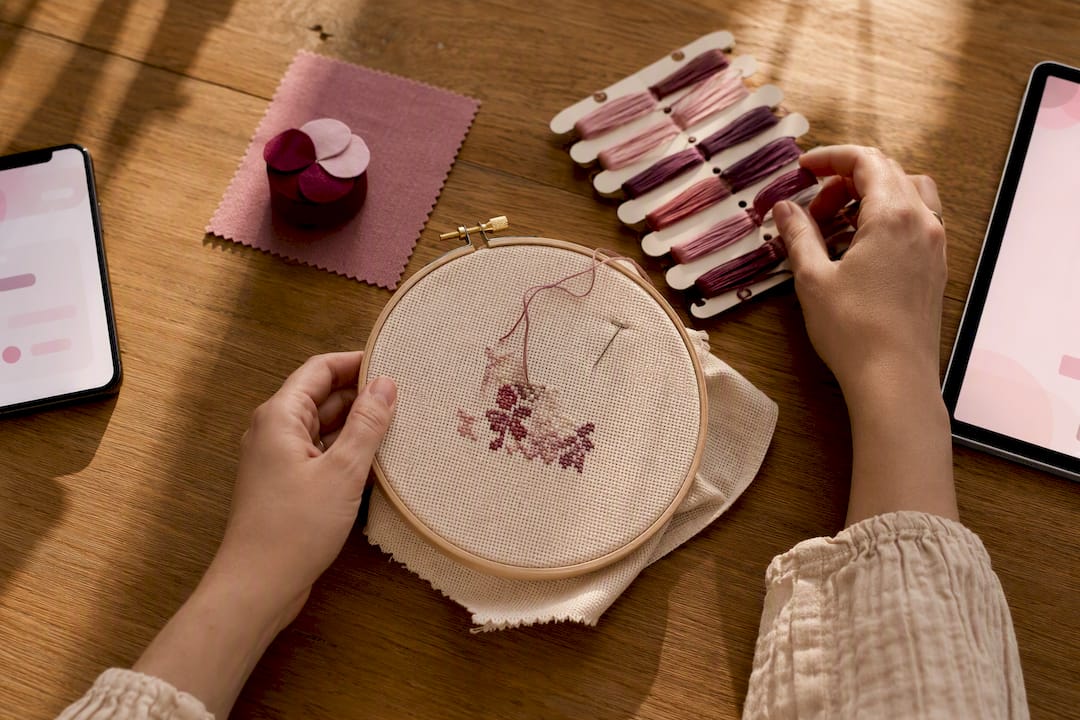
Stitchers: Sync Craft Projects in 10 Minutes Using Flossom ! Cross-stitch supplies beside synced devices Use one cloud-backed project record for each stitch piece, and pick a workflow that updates it automatically.
Stitchers: Sync Craft Projects in 10 Minutes Using Flossom
Use one cloud-backed project record for each stitch piece, and pick a workflow that updates it automatically. A dedicated craft app like Flossom makes this easiest: install it, import a pattern PDF, and add one stash item to confirm it appears on your other device. That single test solves the three problems stitchers actually run into: version drift between phone and laptop, buying thread you already own, and losing progress notes when a browser tab closes.
Table of Contents
- What You Need Before You Start Syncing Craft Projects
- Exactly What to Keep Synced for Each Stitch Project
- Cloud Folder, Craft App, or Offline Tracker: Which Syncing Approach Fits You?
- How to Set Up Flossom to Sync Projects, Stash, and Progress
- Daily Habits That Stop Duplicate Thread Purchases
- What to Do When a Sync Fails or Files Go Missing
- Backing Up and Migrating Your Stitched Projects Safely
- Why Syncing Craft Projects Is Worth the Ten Minutes It Takes
- Try Flossom to Keep Your Stitch Projects in Sync
- Primary Sources and Further Reading
- Sources
- FAQ
What You Need Before You Start Syncing Craft Projects
Before you touch a single setting, gather the pieces that make syncing painless instead of a weekend project. Cross-device sync only works well when you've decided, upfront, where the "real" copy of each project lives.
Start with your device list. Most stitchers work across a phone (for quick stash checks at the shop), a tablet (for pattern viewing at the hoop), and a laptop (for planning and inventory entry). Any sync tool you pick needs to run on all three, ideally without a separate app for each.
Next, settle on a single source of truth, the one record you treat as canonical when two versions disagree. Wilcom's guidance on organizing embroidery designs makes the case plainly: a cloud-based master file prevents the version confusion that happens when three slightly different copies of a chart exist across three devices.
Then round up your source material:
- Pattern PDFs or scanned charts for each project
- Machine files if you cross over into machine embroidery
- Reference photos of finished pieces or color placements
- Any existing stash spreadsheet or CSV you've already built
Exactly What to Keep Synced for Each Stitch Project
Not everything needs to sync. Focus on the handful of items that actually change your decisions mid-project or at the craft store.
Your pattern file and chart notes come first. Add any modifications you've made (substituted colors, adjusted fabric count) directly to that file so notes don't live in a separate sticky-note app nobody checks.
Thread and fabric inventory matters just as much, especially with brand conversions attached. If your pattern calls for DMC but your stash is Anchor, that conversion needs to travel with the project, not live in your head.
Round out the sync list with:
- WIP photos, date-stamped, so you can see actual progress over time
- Stitch counts and progress markers for each session
- Auto-generated shopping lists comparing pattern needs against owned stash
- CSV exports of your full stash for archiving or sharing with a stitching group
Pro Tip: Photograph your WIP under the same light and angle every session. It sounds fussy, but consistent photos make it far easier to spot dye-lot mismatches later, and they sync as a clean visual timeline instead of a random photo dump.
Cloud Folder, Craft App, or Offline Tracker: Which Syncing Approach Fits You?
Three practical approaches exist, and each one trades convenience for control differently.
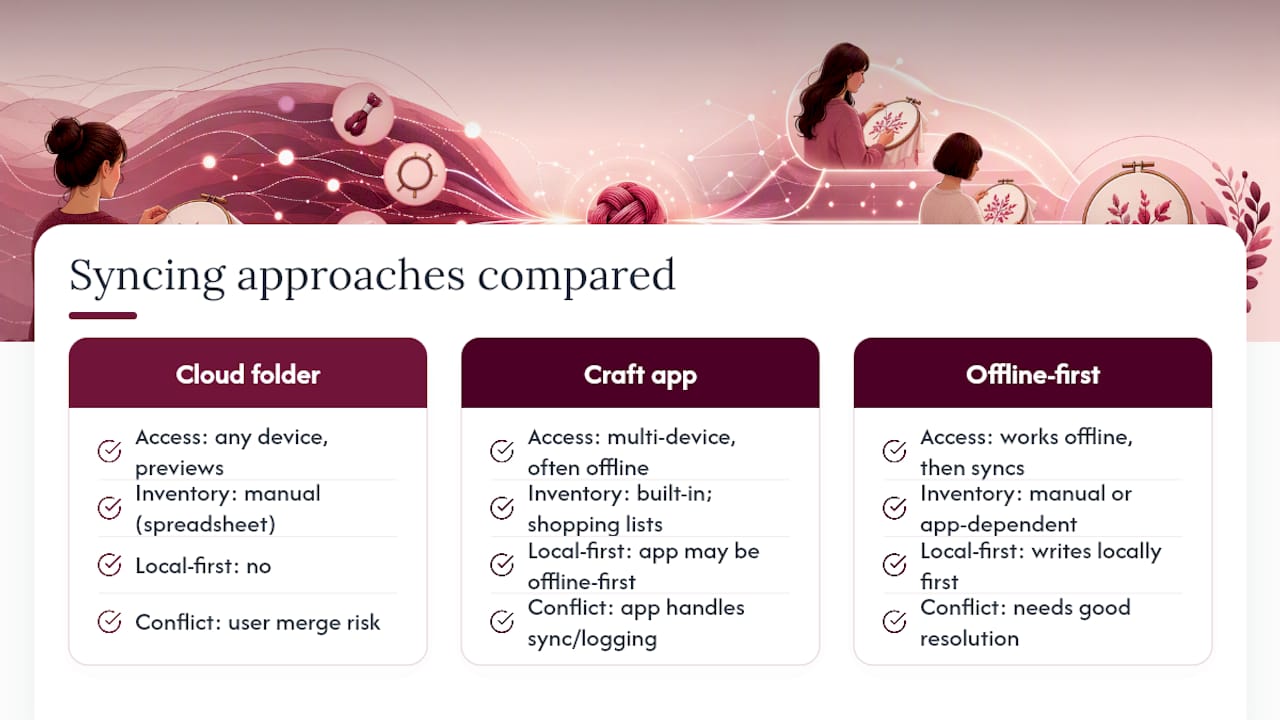
A universal cloud folder (Google Drive, Dropbox, OneDrive) gives you access from any device with previews built in. StitchAwayApplique's cloud storage guidance points to version history and instant access as the real payoff. The tradeoff: you're still tracking stash manually in a spreadsheet, and nothing stops you from editing the same file on two devices at once and creating a merge headache.
A dedicated craft app bakes inventory, brand conversion, and shopping-list generation into the sync layer itself, which is usually the least effort for stitchers juggling multiple WIPs. Apps in this category, like Krafio, advertise offline-first sync and session logging as core features, showing how common this pattern has become across craft tracking generally.
An offline-first tracker writes changes locally first, then pushes to the cloud once you're connected. That's ideal for stitching on a plane or at a retreat with spotty Wi-Fi, but conflict resolution needs to be handled well, or you risk two versions of the same session competing for the same slot.
By the numbers: Stitchmate's stitch counter saves marks locally first and syncs when you're signed in, so a dropped connection during a stitching session doesn't erase your count. That local-write-then-sync pattern is the same principle behind most reliable craft-tracking tools.
Most stitchers land on a hybrid: master pattern files in a cloud folder, with a craft app handling stash and session logging day to day, a practice commonly preferred by stitchers.
How to Set Up Flossom to Sync Projects, Stash, and Progress
Getting fully synced takes less time than untangling one skein of embroidery floss. Here's the sequence:
- Create your Flossom account and install it on your phone, tablet, and desktop. It runs in any browser and adds to your home screen on iOS, Android, and desktop, so there's no separate download per device.
- Import a pattern PDF, add a cover photo, and create your first project. This becomes your single source of truth for that piece.
- Add or scan a few thread and fabric items into your stash, then run the brand conversion tool on one sample color to see how it maps across the 55 supported brands.
- Log a WIP session with a progress photo, then open Flossom on a second device to confirm the update appears. This one check tells you sync is actually working, not just running.
- Turn on low-stock alerts, then export a CSV of your stash to test that a restore works before you need it in an emergency.
Pro Tip: Do step 4 before you trust the system with a big project. A thirty-second check across two devices now saves you from discovering a sync gap mid-project, when you've already bought fabric based on a stale inventory count.
Daily Habits That Stop Duplicate Thread Purchases
Sync tools only work as well as the habits around them. A few small routines prevent most of the chaos stitchers run into.
Treat one project record as canonical, and update it first, every time, before jotting notes anywhere else. If you journal progress on paper at the hoop, transfer it to the app the same day rather than letting three sessions pile up unrecorded.
Build an end-of-session checklist: snap a photo, log the stitch count, and glance at the app on your other device to confirm the update landed. It takes under a minute and catches sync failures early.
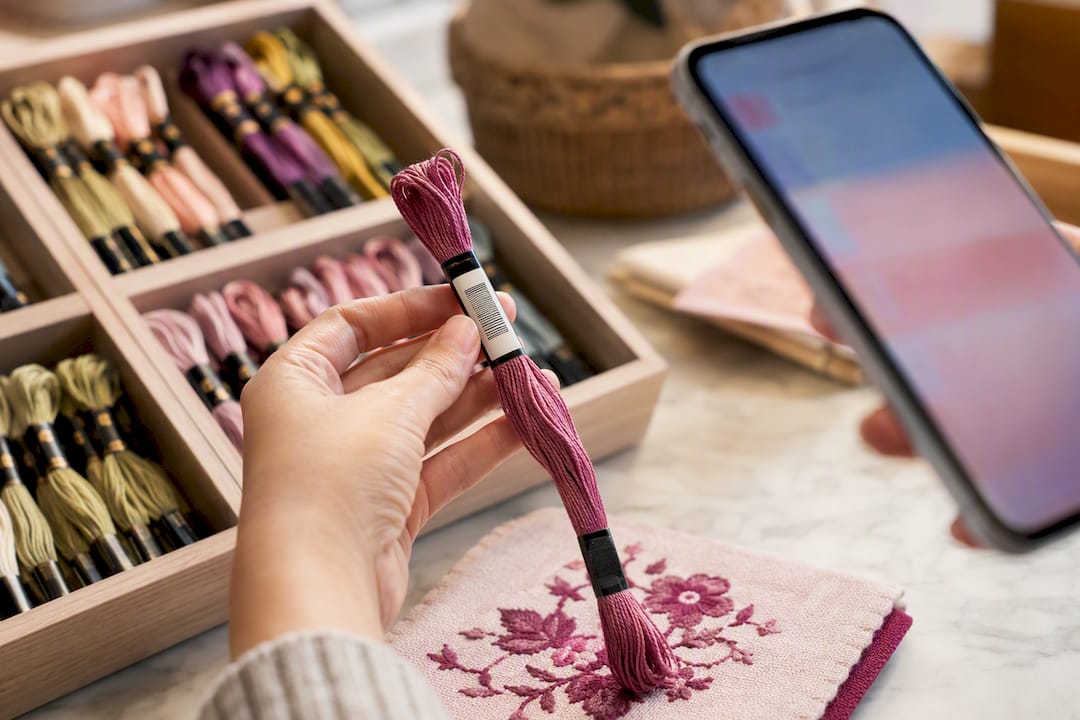
Run a weekly inventory audit using barcode scanning rather than typing skein numbers by hand. A camera color picker and barcode scanner cut down the manual entry errors that cause duplicate buys, since you're matching the actual physical skein instead of guessing from memory.
Keep file names and folder structures consistent, too. Naming conventions that mix technical and visual descriptors, like "DMC310_blackfill_v2," make searching across devices far faster than generic names like "pattern2."
What to Do When a Sync Fails or Files Go Missing
Sync problems are usually simple to fix once you know the order of operations.
- Force a manual sync, or sign out and back in, if a photo or progress update isn't showing up on a second device. This resolves the majority of stuck syncs.
- Check timestamps on conflicting edits. If you updated the same project on two devices before either synced, note which version has the more recent session log and manually merge any missing details.
- Restore from your CSV or ZIP export, or your cloud folder's version history, if a file appears genuinely lost rather than just delayed.
- Contact support with specifics: device type, app version, a screenshot of the error, and the timestamp of the last successful sync. Vague reports take longer to resolve than reports with exact details.
Backing Up and Migrating Your Stitched Projects Safely
A sync system isn't a backup system on its own, so build in a separate habit for both.
Export your full stash and project list as CSV or ZIP on a regular schedule, monthly at minimum if you're actively working multiple WIPs. Keep at least one copy locally and one copy in the cloud, so a single device failure or account issue never wipes everything at once.
If you're moving to a new account or a different app entirely, the safest migration path is straightforward: export as CSV/ZIP, manually check brand and color-code mappings where an automatic conversion looks off, import into the new system, then verify the item counts match before deleting the original files.
| Backup element | Recommended format | Suggested frequency |
|---|---|---|
| Full stash inventory | CSV | Monthly |
| Active project records | CSV or ZIP | After major progress updates |
| WIP photos | ZIP with cloud folder mirror | Weekly during active stitching |
Keep a rolling set of your last three exports rather than just one. If a recent import introduces an error, you've got a clean version to fall back to.
Why Syncing Craft Projects Is Worth the Ten Minutes It Takes
I've watched stitchers rebuy the exact same skein of DMC 3865 three times in a year, simply because their stash notes lived on a phone that died. That's the actual cost of not syncing: not lost data in the abstract, but real money spent twice on thread already sitting in a drawer.
Setting this up once, properly, takes less time than a single stitching session. The return shows up every time you walk into a craft store and can check your stash on the spot instead of guessing.
— Simone
Try Flossom to Keep Your Stitch Projects in Sync
A dedicated craft app is built specifically for the problem this article just walked through: keeping your patterns, stash, and progress photos in one place across every device you stitch on. It catalogs thread and fabric across multiple brands, auto-generates shopping lists by comparing what a pattern needs against what you already own, and syncs everything without asking you to think about it twice.
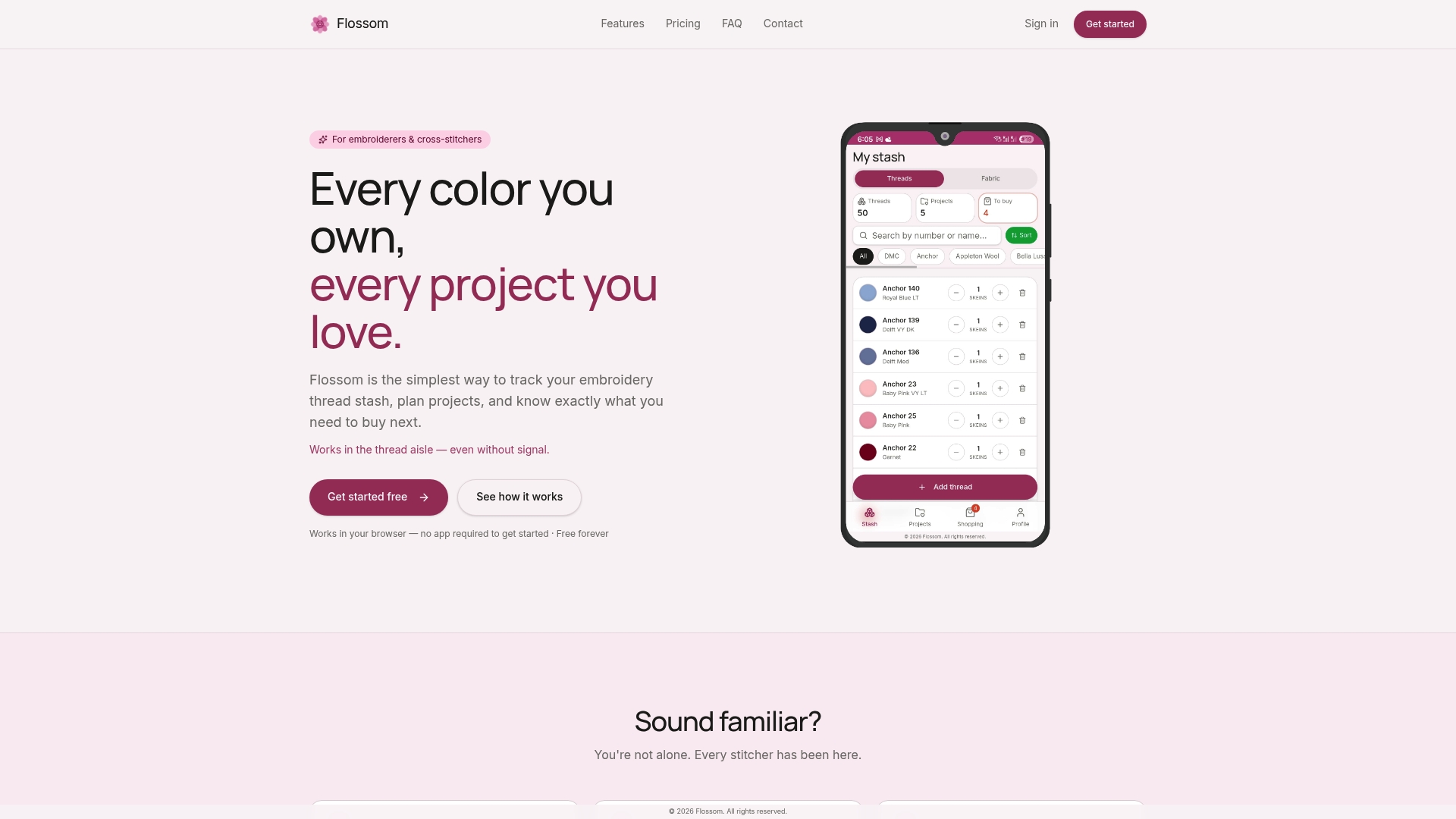
A free tier covers some common thread brands with unlimited stash and a limited number of projects, so you can test the sync workflow from this article without paying anything. If you're planning out session time for an active WIP, the project time calculator gives you a realistic estimate before you commit to a deadline. When you're ready to see everything Flossom offers in one place, the full tools page lays out every feature, from barcode scanning to CSV export. Start with one project and one stash item, confirm it syncs on a second device, and go from there.
Primary Sources and Further Reading
Wilcom's best-practice guidance on organizing embroidery designs lays out why a single cloud-based source of truth prevents version confusion. Stitchmate's stitch counter description explains how local-first writes preserve progress across phone, tablet, and laptop. StitchAwayApplique's cloud storage guidance covers backup cadence and version history for embroidery files. For hands-on setup, Flossom's own guide to storing embroidery designs and notes walks through the process in more detail.
Sources
- How to Organize Your Embroidery Designs: Best Practices
- Stitch Counter & Progress Tracker for Cross Stitch — Free, in Your Browser
- Cloud Storage for Embroidery Designs: The Smart Way to Organize & Access Your StitchAwayApplique Files - StitchAwayApplique
FAQ
What's the easiest way to sync craft projects across devices?
Use a dedicated craft app that syncs automatically, like Flossom, rather than manually moving files between a cloud folder and a spreadsheet.
Do I need internet access to keep progress updated?
No. Local-first tools save your session data on the device first, then sync it once you're back online, following the same pattern Stitchmate uses for its stitch counter.
How do I avoid buying thread I already own?
Keep your stash cataloged with brand conversions in one synced record, so a shopping list generated from a new pattern automatically excludes what you already have.
What should I do if a photo or update doesn't appear on my other device?
Force a manual sync or sign out and back in first; if the file is still missing, restore it from a recent CSV or ZIP export.
How often should I back up my synced craft data?
Export a CSV or ZIP monthly at minimum, and keep one copy locally and one in the cloud so a single device failure doesn't cost you everything.
Recommended
We make Flossom — the calm app for cross-stitchers and embroiderers who want their stash, projects, fabric and shopping list in one tidy place.