
Export Your Flossom Stash to CSV in Under Five Minutes
Export Your Flossom Stash to CSV in Under Five Minutes ! Hand exporting an organized thread stash Yes, you can export your Flossom stash as a CSV file straight from the web app or the PWA, and it takes less than five minutes.

Export Your Flossom Stash to CSV in Under Five Minutes
Yes, you can export your Flossom stash as a CSV file straight from the web app or the PWA, and it takes less than five minutes. The option lives under Settings, and once you download the file you can use it to back up your inventory, build a shopping list before your next order, or move your catalog into another tool. Remember that the CSV is a snapshot of the moment you exported it, not a live feed, so re-export whenever you make a meaningful update.
Table of Contents
- How to Export Your Flossom Stash to CSV
- Prepare Your Stash Data Before Exporting
- What Should the CSV Columns Look Like?
- Turning Your CSV Into Shopping Lists and Backups
- How Do I Verify My Export Worked?
- Simone's Take: Exports Are Insurance Against Buying What You Already Own
- Get Your Stash Export Set Up Today
- Sources
- FAQ
How to Export Your Flossom Stash to CSV
The export tool sits in the same place whether you're on a desktop browser or using Flossom installed as a home screen app on iOS or Android. Here's the exact path.
- Open Flossom and go to Settings → Export Data (some versions label this Backup & Export).
- Pick your scope: export everything, just threads, just fabrics, or a filtered view (for example, only low-stock colors).
- Tap Export. Depending on your device, the file either downloads directly to your browser's downloads folder or opens a share sheet so you can send it to email, Drive, or another app.
- Rename the file using a dated format like
stash-export-2026-03-12.csvso you can tell versions apart later. - Move the file into cloud storage, whether that's Google Drive, iCloud, or Dropbox, so you have a copy that survives a lost phone or a wiped browser cache.
Delivery behavior varies by tool. Some apps push the file straight to your browser the instant you click Export; others process it and send a share link or email, which is worth knowing before you assume the export "didn't work" when it's really just a few seconds behind.
Pro Tip: Export right after a big haul from a thread sale. That's when your stash count changes the most, and it's the easiest moment to lose track of what you actually own.
Prepare Your Stash Data Before Exporting
A messy export is almost always a messy stash, just moved into spreadsheet form. Spend ten minutes cleaning up first and the CSV will actually be useful once it lands on your hard drive.
- Scan for duplicate rows. It's common to log the same skein twice after a big cataloging session, especially if you're working from memory instead of the label.
- Check for blank quantity fields. A blank isn't the same as zero, and it will throw off any shopping list logic later.
- Standardize your color codes. Use the actual DMC or Anchor number in the code field rather than a nickname like "that dusty blue," since a short pre-export cleanup pass prevents mapping headaches once the file leaves the app.
- Decide what you actually want in the file: identity fields (brand, color code, name), inventory fields (quantity, location), workflow status (keep, sell, replace), and free-text notes.
Pro Tip: Before any bulk edit, jot down your total row count. If you end up with 40 fewer rows than expected after a cleanup pass, that number is the fastest way to catch an accidental mass delete.
What Should the CSV Columns Look Like?
Spreadsheet trouble almost never comes from the stash data itself. It comes from formatting choices made (or skipped) at export time. Getting the structure right up front saves you from garbled color names or rows that split in the wrong place.
Group your columns by function rather than dumping everything in random order:
- Identity: brand, color code, color name
- Inventory: quantity, skein length, thread type (floss, pearl cotton, variegated)
- Location: storage bin or drawer, project assigned
- Notes: free text for anything that doesn't fit elsewhere
- Image URL (optional): a link to a reference photo if your system tracks one
Correct encoding and quoting rules matter more than most stitchers expect. A stray comma inside a notes field like "blue, but darker than 792" can silently split into two columns if the field isn't quoted properly, and that's the single most common cause of a CSV that looks fine in the app but opens as gibberish in Excel.
When you open the file, use Data → Text to Columns if Excel doesn't auto-detect the delimiter, freeze the header row under the View menu, and format your quantity column as a number rather than text so you can sort and filter properly.
Turning Your CSV Into Shopping Lists and Backups
The export itself is just the starting point. What you do with it afterward is where the real payoff shows up.
- Shopping lists: Filter for
quantity = 0or anything below your personal low-stock threshold, then cross-reference against the colors a new pattern calls for. - Backups: Keep the date in every filename and store at least one copy somewhere off your main device, since a dated export gives you an independent record you can compare against later if something goes wrong.
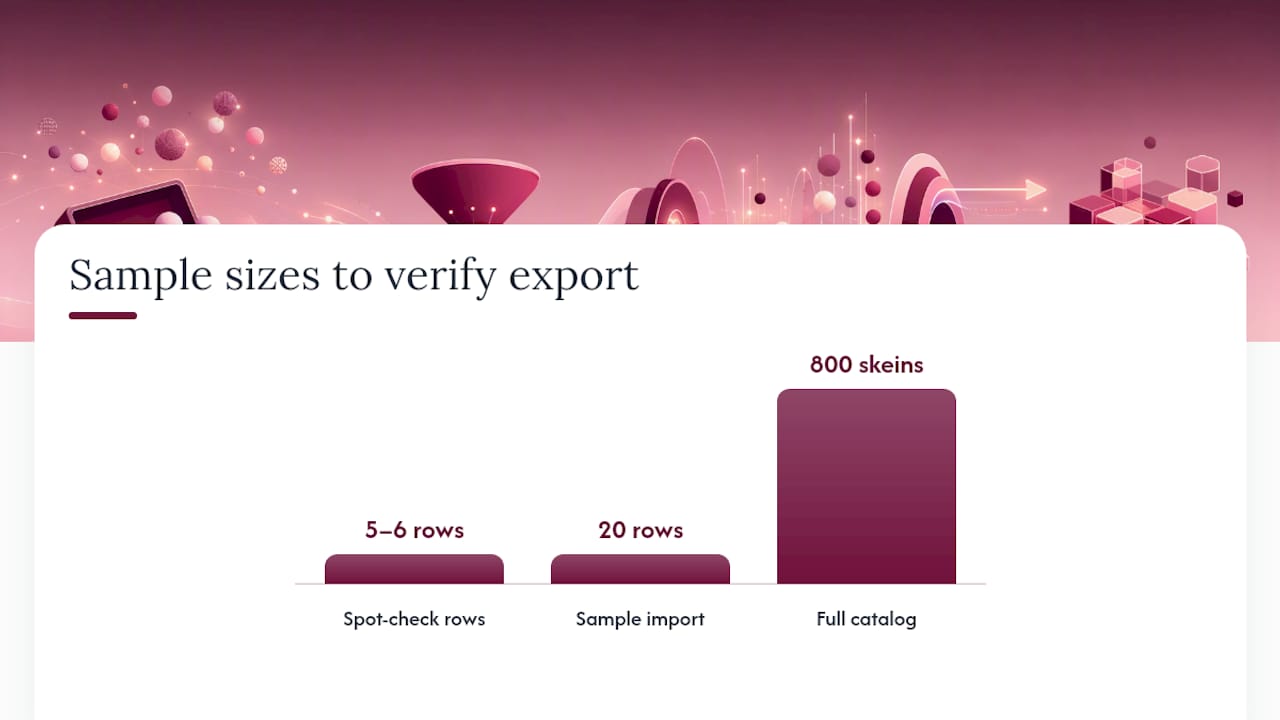
- Migration: Before importing into another tool, map your Flossom headers to that tool's template and test with a small batch first, roughly 20 rows, to confirm nothing breaks.
Anyone comparing a new pattern's color list against what they already own is basically running a manual version of what Flossom's shopping list feature automates.
How Do I Verify My Export Worked?
Don't assume the file is good just because it downloaded. A quick check takes two minutes and saves you from importing garbage into another tool.
- Open the file and confirm the header row is intact and every column you expected is present.
- Spot-check five or six rows against the app itself. Do the brand, color code, and quantity match what Flossom shows on screen?
- Count the total rows and compare that number against what you noted before exporting.
- If you're importing elsewhere, run a small test batch first. A 20-row sample import will surface a mapping problem long before it corrupts a full catalog of 800 skeins.
Most importer errors trace back to one of three things: encoding mismatches, a required field left blank, or a file that's too large for the destination tool's upload limit. If you hit a size cap, split the file by thread brand or by fabric type and import each piece separately.
Pro Tip: Many import tools offer a downloadable template with the exact headers they expect. Grab it, fill it with your Flossom data, and you'll skip most of the manual field-mapping entirely.
Simone's Take: Exports Are Insurance Against Buying What You Already Own
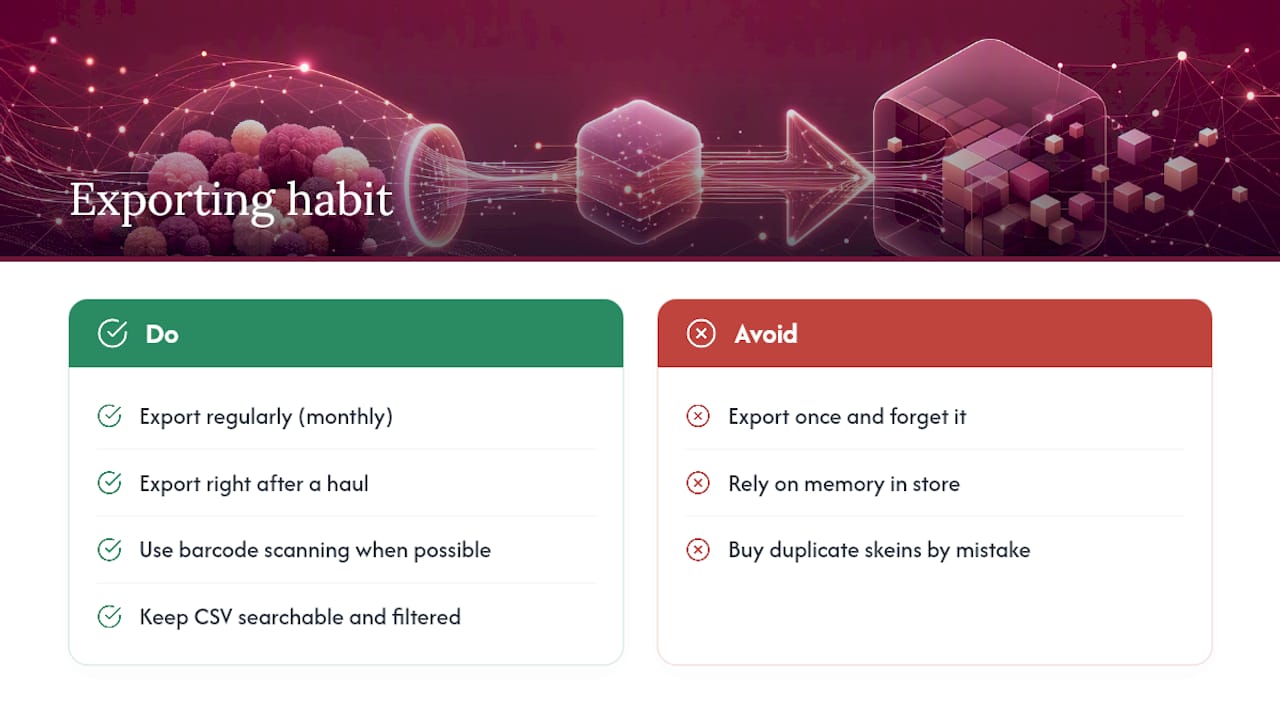
The stitchers who get the most out of exporting aren't the ones with the fanciest spreadsheets. They're the ones who do it consistently. A CSV pulled once and forgotten is barely better than no catalog at all. One pulled every month, or right after a haul, becomes a real record you can trust when you're standing in a craft store trying to remember if you already own DMC 3865.
That's the actual argument for exporting regularly, and it's less about spreadsheets and more about not buying a third skein of a color you already have two of. Flossom's brand conversion across 55 palettes, barcode scanning, and built-in CSV export exist for exactly this reason: they turn a shoebox of floss into something you can actually search, filter, and check before you click "add to cart" again.
— Simone
Get Your Stash Export Set Up Today
Built-in CSV export and import are available, and the free tier covers cataloging with unlimited stash storage, so most stitchers can start exporting real backups without paying anything. If you work across more than two brands, need barcode scanning to speed up cataloging, or want fabric stash tracking alongside your threads, Flossom Pro unlocks all 55 brands and the rest of the toolkit for $14.99 per year.
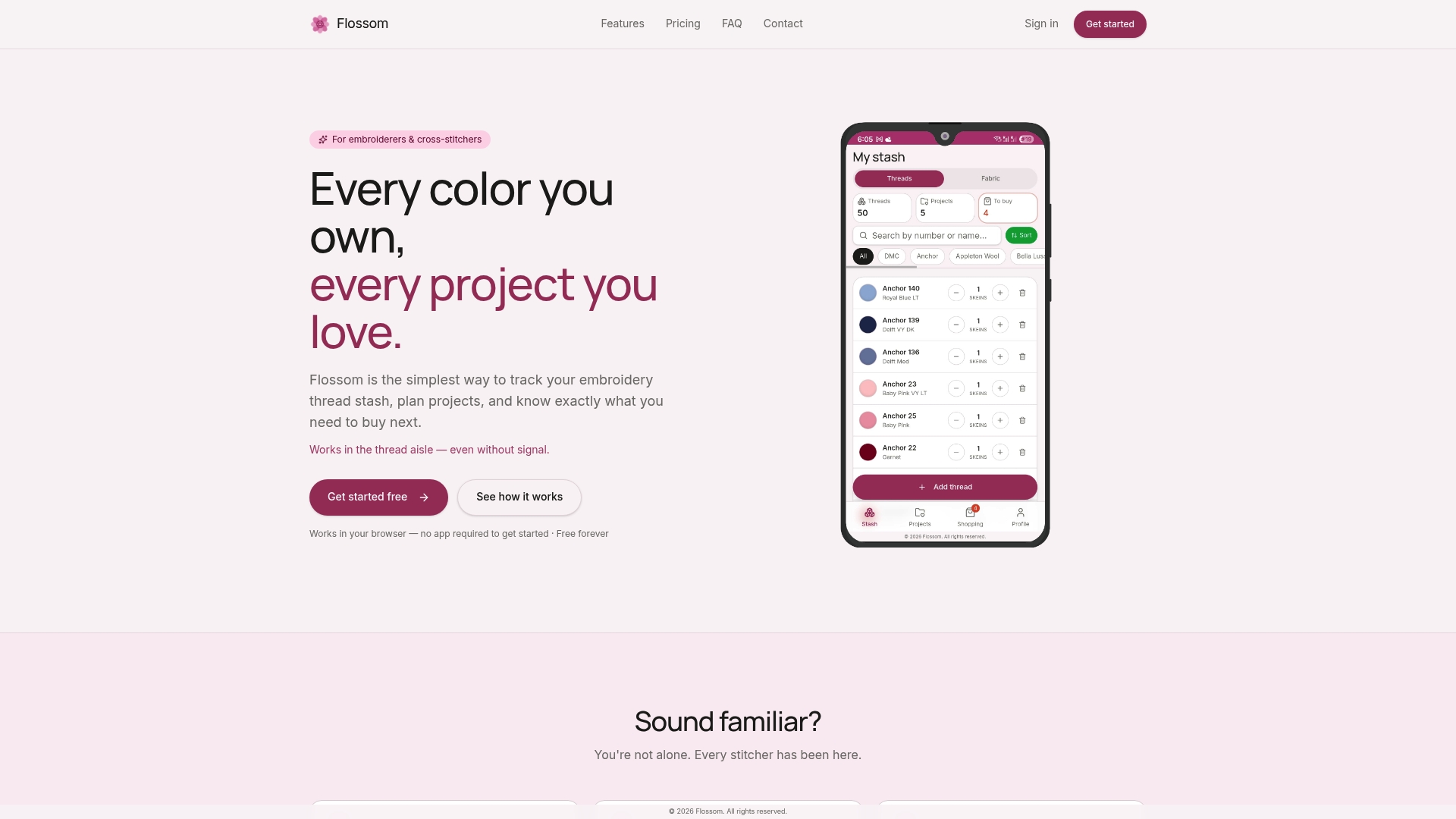
Getting started is straightforward: create your stash entries, export a sample CSV to see the format for yourself, and decide from there whether the free tier covers what you need or whether Pro's extra brand coverage is worth it. Head to Flossom's pricing page to compare the two tiers and start your export today.
Sources
For more on CSV formatting standards, see the RFC 4180 quoting guidance and general inventory export practices. For stash-specific organization tips, browse Flossom's inventory blog tag or the kit contents checklist.
- Export your comic collection to CSV: 2026 guide
- How to export your data from any inventory tool
- Export your LEGO collection — CSV permanence guidance
FAQ
Can I Export Just My Threads or Just My Fabrics?
Yes. Flossom's export tool lets you scope the download to threads only, fabrics only, or your full stash, so you're not stuck sorting one giant file afterward.
What File Format Does Flossom Use for Exports?
Flossom exports to standard CSV, which opens directly in Excel, Google Sheets, or Numbers without any conversion step. The file uses UTF-8 encoding by default to keep accented color names intact.
Do I Need Flossom Pro to Export My Stash?
No. CSV export works on the free tier, which covers unlimited DMC and Anchor stash cataloging. Flossom Pro adds coverage for all 55 thread brands plus barcode scanning and fabric tracking, for $14.99 per year.
How Often Should I Re-Export My Stash?
Export after any significant change, like a big haul or a bulk cleanup, since the CSV is a static snapshot rather than a live sync. Many stitchers settle into a monthly habit or export right before a shopping trip.
Why Does My Exported CSV Look Garbled in Excel?
This usually comes down to encoding or delimiter mismatches. Try opening with UTF-8 encoding specified, or use UTF-8 with BOM if Windows Excel keeps displaying accented characters incorrectly.
Recommended
We make Flossom — the calm app for cross-stitchers and embroiderers who want their stash, projects, fabric and shopping list in one tidy place.