
How to Install a Web App on Android: Step-by-Step
How to Install a Web App on Android: Step-by-Step ! Hand about to tap Android phone screen To install a web app on Android, open the site in Chrome (or another browser), tap the menu icon, and choose "Install" or "Add to Home screen.

How to Install a Web App on Android: Step-by-Step
To install a web app on Android, open the site in Chrome (or another browser), tap the menu icon, and choose "Install" or "Add to Home screen." A well-built PWA installs like a native app and shows up right in your launcher.
- Tap the three-dot menu in your browser while the site is open, then look for "Install app" or "Add to Home screen."
- Confirm the prompt. The app icon lands on your home screen or in your app drawer within seconds.
- No install option showing? Use the manual "Add to Home screen" menu item as your fallback. It still gets the icon on your phone, just without some of the extra integration.
Key Takeaways
Installing a web app on Android takes under a minute through the browser menu, and Chrome delivers the most native-like result because it can mint a full WebAPK instead of a plain shortcut.
| Point | Details |
|---|---|
| Install through the menu | Open the site, tap the three-dot menu, and choose "Install" or "Add to Home screen." |
| Chrome gives the fullest experience | Chrome can mint a WebAPK, unlocking launcher presence and deeper OS integration that shortcuts lack. |
| Manage apps like any other | Find, update, and uninstall installed PWAs through Settings → Apps or a long-press on the icon. |
| Missing prompts have fixes | Check for a valid manifest and service worker, or try Chrome if another browser only offers a shortcut. |
| Flossom installs the same way | Visit flossom.app in Chrome and install it for offline stash tracking, quick launch, and cross-device sync. |
Table of Contents
- Install Web App Android: Chrome, Firefox, Edge, and Samsung Steps
- Why Does Installing a Web App Look Different Across Browsers?
- Why Doesn't the Install Prompt Show Up Automatically?
- Where Do Installed Web Apps Live, and How Do You Remove Them?
- What to Do When Install or Add to Home Screen Won't Appear
- Try Installing Flossom's Web App on Your Phone
- How to Turn Notifications and Offline Support On or Off
- What Do You Need Before You Can Install a Web App on Android?
- Is Installing a PWA the Same as Installing a Native App?
- Sources
Install Web App Android: Chrome, Firefox, Edge, and Samsung Steps
Every major Android browser lets you install a progressive web app (PWA), but the menu wording shifts slightly from one to the next. Here's the process broken down by browser.
- Chrome: Visit the site, tap the three-dot menu in the top right, select "Install app" (or "Add to Home screen" on older versions), then confirm on the pop-up dialog.
- Firefox: Open the site, tap the menu button, and look for "Install" or "Add to Home screen" near the bottom of the list.
- Edge: Navigate to the page, tap the three-dot menu, choose "Add to phone," then confirm the name and icon before finishing.
- Samsung Internet: Tap the menu bar icon, select "Add page to," then choose "Home screen" from the submenu.
Across all four, the new icon typically appears within a few seconds, either directly on your home screen or tucked into your app drawer alongside your other apps. None of them ask for unusual permissions during install itself; any camera, location, or notification access gets requested later, when the app actually needs it.
Pro Tip: If the icon doesn't appear where you expect, check your app drawer first. Some phone launchers sort new installs alphabetically instead of dropping them on the home screen.
Why Does Installing a Web App Look Different Across Browsers?
The gap comes down to one technical detail: whether the browser can mint a WebAPK. Chrome can generate this signed, Android-native wrapper around a qualifying PWA, and that wrapper is what unlocks full launcher presence, intent filters, and deeper OS integration, according to Web. Other browsers, including most versions of Firefox and Samsung Internet, generally fall back to a simpler home screen shortcut instead.
That difference matters more than it sounds like on paper:
- A WebAPK shows up in Android's app switcher and Settings the same way a Play Store app does.
- A shortcut just opens a browser tab styled to look like an app. It won't always get its own entry in system-level app management.
- Features like notification badging and custom app shortcuts (the long-press menu options) tend to work more reliably on WebAPK installs than on plain shortcuts.
If you install the same site through Chrome and through a different Android browser, don't be surprised if you get two noticeably different results. One community discussion on Stack Overflow documents users hitting exactly this problem: the same PWA behaves inconsistently across browsers, and switching to Chrome usually resolves it. For the most consistent, native-feeling install on Android, Chrome is the safer default.
Why Doesn't the Install Prompt Show Up Automatically?
Browsers deliberately restrict automatic install prompts. If every site could pop up an install dialog the moment you loaded it, your phone would turn into a nagging mess within a week. Instead, a site has to earn the prompt by meeting installability criteria, and even then, the browser controls when and how it appears.
For developers and more technical readers, there's a specific mechanism behind this: the beforeinstallprompt event. A site can capture that event, hold onto it, and fire the install dialog later when a user taps a button, rather than the instant the page loads.
The pattern exists because browsers won't let a site force an install without a real user gesture behind it. The event gets saved, then triggered with
prompt(), and the site can read the result throughuserChoiceto see whether the person accepted or dismissed it, according to MDN's guide on triggering the install prompt.
What this means for you as a user is simpler than it sounds:
- If you don't see an automatic prompt, that's often expected behavior, not a bug.
- Open the browser menu and look for "Install" or "Add to Home screen" manually. It's always there as a fallback on a qualifying site.
- Dismissing a prompt once won't always block it forever, but some browsers do throttle how often they'll re-offer it.
Where Do Installed Web Apps Live, and How Do You Remove Them?
Once you install a PWA, Android treats it a lot like any other app on your phone.
- Find it. Installed web apps show up in your launcher and app drawer, and they also appear in Settings → Apps, right alongside your native apps, per Chrome's own documentation on managing web apps.
- Update it. There's no separate update button to hunt for. Chrome quietly refreshes the WebAPK's metadata, like its icon or display name, whenever the site's manifest changes.
- Uninstall it. Long-press the icon and select "Uninstall," or go to Settings → Apps, find the app, and remove it the same way you'd remove any Android app.
If an update ever looks off (wrong icon, weird name change), you're not stuck. You can simply uninstall and reinstall from the site again, since the underlying app lives on the web, not on a version you have to chase down.
What to Do When Install or Add to Home Screen Won't Appear
A missing "Install" option, or one that only creates a plain shortcut, usually traces back to a handful of predictable causes.
- Check the basics first. A site needs a valid
manifest.jsonfile and an active, registered service worker to count as installable, based on MDN's installability guidelines. If you're the site owner, Chrome DevTools' Application panel will flag exactly what's missing. - Switch to Chrome if you haven't already. It has the best shot at minting a full WebAPK instead of a bare shortcut.
- Clear browsing data if you dismissed an install prompt earlier. Some browsers won't re-offer it until you do.
- Expect a shortcut, not a WebAPK, if the browser's minting service isn't available for that site, a known fallback documented in web.dev's WebAPK breakdown.
Pro Tip: Before assuming a site is broken, try it in Chrome on a different Android device. If the install works fine there, the problem is almost always your original browser, not the site itself.
Try Installing Flossom's Web App on Your Phone
Flossom's web app installs the same way: open Flossom in Chrome, tap the menu, and choose "Install" or "Add to Home screen."
- Offline access to your thread and fabric stash while you're stitching without WiFi.
- Quick launch straight from your home screen, no browser tab hunting.
- Cross-device sync, so your project photos and shopping lists stay current on your phone and your laptop.
- A light footprint compared with a downloaded app, since there's nothing to store beyond the shortcut itself.
The free tier covers DMC and Anchor catalogs with unlimited stash and three projects. Flossom Pro unlocks all 55 brands plus the camera color picker and barcode scanner.
How to Turn Notifications and Offline Support On or Off
Notifications and offline access on an installed PWA aren't controlled through some hidden app menu. They live in the exact same place your phone manages every other app's permissions.

To enable notifications, open the app once after installing it. Most well-built PWAs will ask permission the first time they have something worth notifying you about, rather than the instant you install. If you tapped "Deny" by accident, or want to turn notifications off later, go to Settings → Apps, find the installed web app, tap Notifications, and flip the toggle.
Offline support works differently because it's not a permission you grant. It depends on whether the site's developer built in a service worker, the background script that caches pages and data so the app keeps working without a signal. You can't manually "turn on" offline mode for a site that wasn't built to support it. What you can do is make sure you've opened the app at least once while connected, since that first visit is usually when the service worker caches what it needs for later.
If an installed app suddenly stops working offline, the most common fix is clearing its storage under Settings → Apps → [App name] → Storage → Clear cache, then reopening it while connected to reload the cache fresh. That resets things without a full uninstall.
What Do You Need Before You Can Install a Web App on Android?
Installing a PWA on Android doesn't demand much, but a few basics need to line up first.
Your phone needs a reasonably current version of Android, and in practice, that's rarely a real obstacle since most devices sold in the last several years clear the bar easily. The bigger factor is your browser. Chrome needs to be a modern, updated version to reliably mint a WebAPK rather than fall back to a shortcut. Firefox, Edge, and Samsung Internet all support installing web apps too, though their install flows tend to produce a shortcut rather than a full WebAPK.
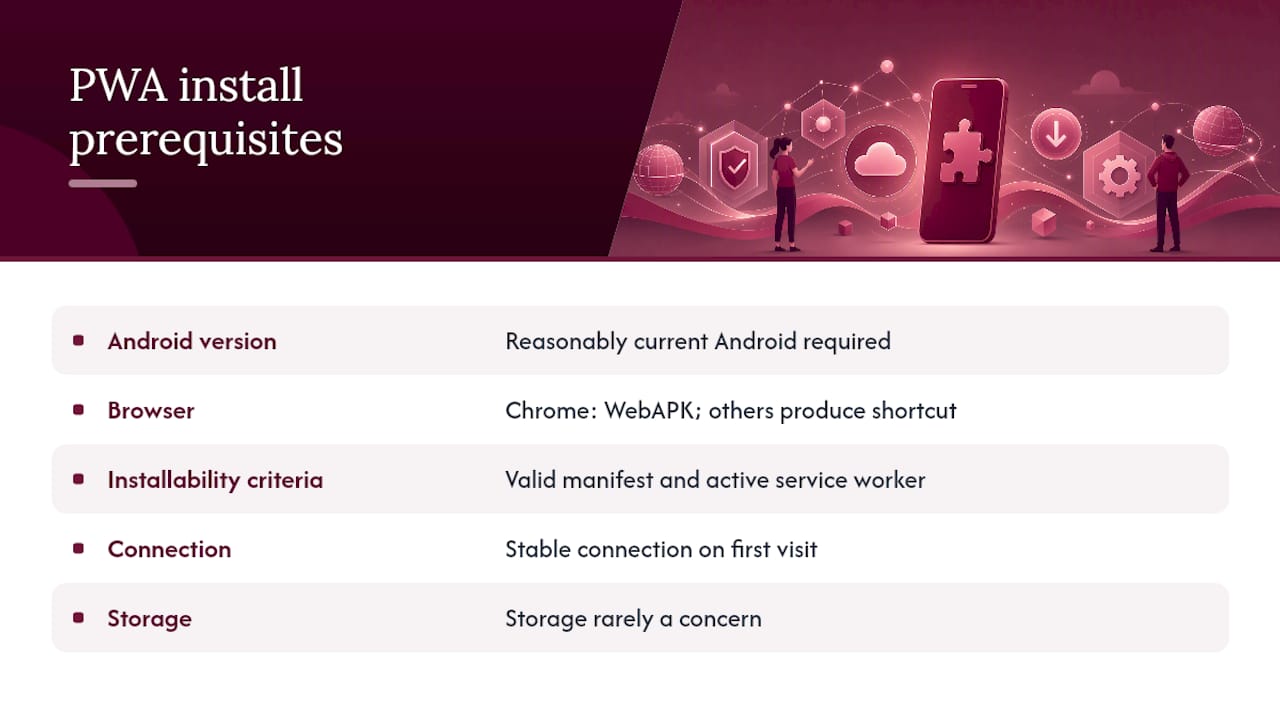
On the website's side, the site itself has to meet installability criteria: a valid web app manifest file and an active service worker, the two technical requirements MDN lays out for installable PWAs. If either is missing, don't expect a full "Install" prompt, no matter how updated your browser is.
You'll also want a stable connection for that first visit, since the app needs to load and cache its resources before offline support kicks in. Storage space is rarely a concern. PWAs generally take up far less room than a comparable app downloaded from the Play Store, since much of what they need loads from the web rather than sitting bundled in a big install file.
Is Installing a PWA the Same as Installing a Native App?
Not quite, and the differences matter more than most people assume going in.
A native Android app comes from the Play Store as a full APK, vetted through Google's review process, downloaded in one package, and updated through the store whenever the developer pushes a new version. A PWA installed through Chrome or another browser skips that entire pipeline. There's no app store listing, no separate download step, and typically no formal review process standing between the developer and your home screen.
Updates work differently too. A native app waits for you (or your auto-update settings) to pull a new version from the Play Store. A PWA updates itself quietly in the background whenever you're online, since it's really just a bookmark wearing an app costume, according to Chrome's own explanation of how installed web apps behave. You're always running close to the current version without doing anything.
Storage and permissions also diverge. Native apps often request broad permissions upfront and can run background processes more aggressively. PWAs request permissions individually, as needed, and generally stay lighter on storage since they lean on web technologies rather than a bundled binary. What you lose with a PWA is deep hardware access and offline capability that depends entirely on whether the developer built a service worker for it. What you gain is a lighter footprint and updates you never have to think about.
When is installing actually worth it?
Install a web app when you'll use it often and want faster, offline-ready access. If you only visit occasionally, a bookmark does the job fine. An installed PWA cuts the friction of searching or digging through tabs every time, but that convenience only pays off with regular use.
— Simone
Ready to Install Flossom and Stop Rebuying Thread
Flossom's web app installs directly from your browser, no Play Store detour required, and once it's on your home screen you get offline access to your entire stash, your WIP photos, and your shopping lists whenever you're stitching without signal. That matters most the moment you're at a craft store trying to remember if you already own DMC 3782, or mid project and want to log progress without waiting for a page to load.
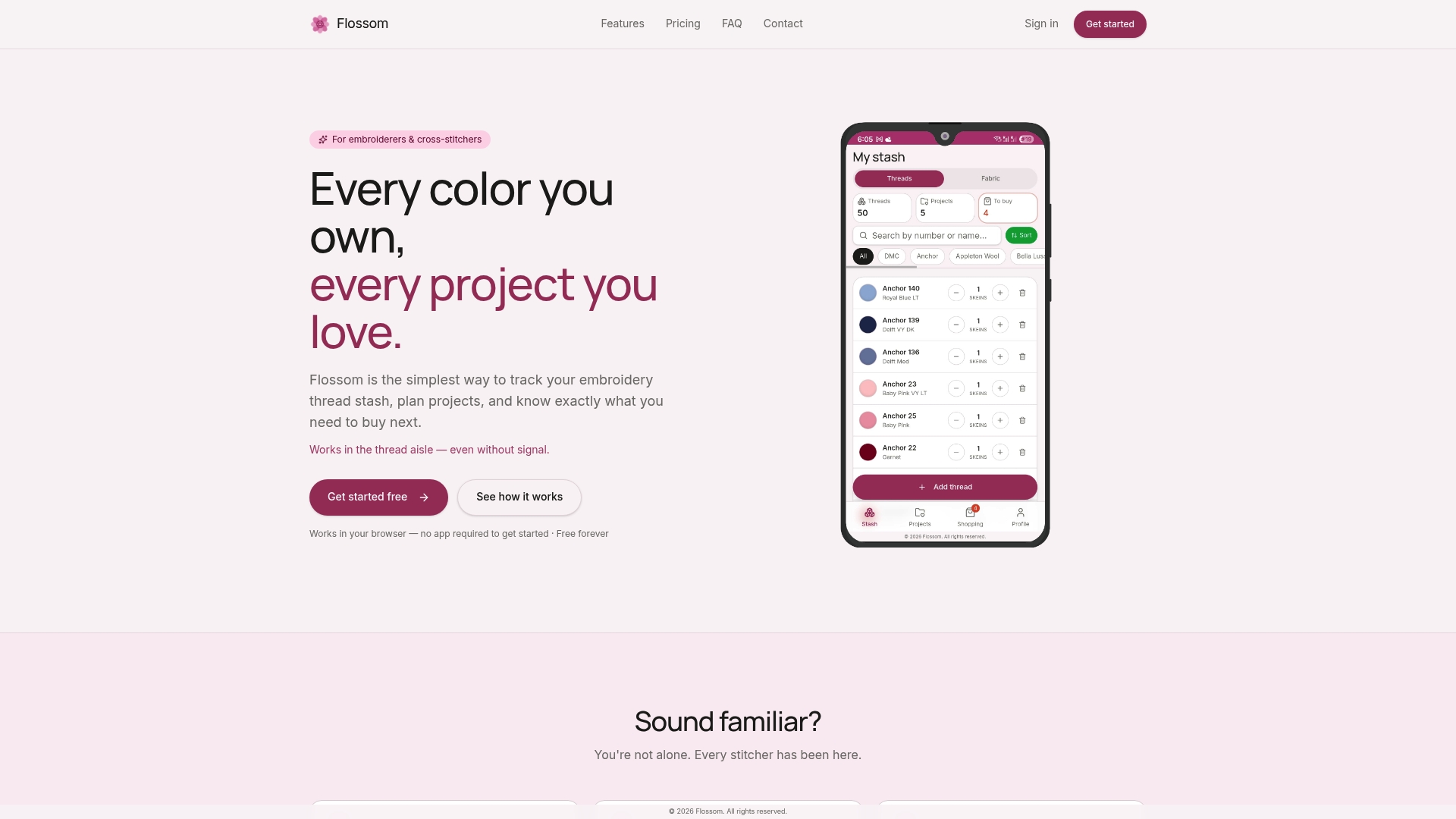
Start with the free tier, which covers DMC and Anchor catalogs with unlimited stash tracking and three active projects. If you're planning a bigger project and want to see how long it might realistically take, try the project time calculator right from your browser, then install the app so it's one tap away next time. Pro adds all 55 brands, the camera color picker, and barcode scanning for anyone ready to go all in on organizing their stash.
Sources
Recommended
We make Flossom — the calm app for cross-stitchers and embroiderers who want their stash, projects, fabric and shopping list in one tidy place.