
Match DMC/Anchor: Import Your Floss Spreadsheet to Flossom
Match DMC/Anchor: Import Your Floss Spreadsheet to Flossom ! Stitcher reviewing a floss inventory spreadsheet Yes, you can import your floss inventory spreadsheet into Flossom.

Match DMC/Anchor: Import Your Floss Spreadsheet to Flossom
Yes, you can import your floss inventory spreadsheet into Flossom. Export your file as a CSV, map your columns to Flossom's stash fields, run the built-in validation, and finish the import. Plan on standardizing brand codes like DMC and Anchor first, since both are supported on the free tier, and keep a backup copy of your original file before you upload anything.
TL;DR:
- Standardize all brand names in your spreadsheet to match supported entries like DMC and Anchor before exporting to ensure automatic matching during import.
- Use a UTF-8 encoded, comma-delimited CSV file with a single header row and clean, consistent column naming to prevent common parsing errors.
- Verify your CSV's delimiter and encoding before uploading, and run a test import on a small sample to identify and fix mapping or formatting issues early.
- After importing, review active projects and stash quantities to confirm colors and locations are accurate and merge duplicate entries where necessary.
- Export a backup CSV immediately after a successful import to maintain a current record of your stash data for ongoing management and updates.
Table of Contents
- How Do You Prepare Your Spreadsheet for Import?
- Step-by-Step: Importing Your Floss Spreadsheet Into Flossom
- How Do You Match Brands and Convert Thread Codes?
- How Do You Verify the Import and Fix Errors?
- What Should You Do After a Successful Import?
- Why Moving Off Spreadsheets Actually Changes How You Shop
- Put Your Imported Stash to Work With Flossom's Tools
- Sources
How Do You Prepare Your Spreadsheet for Import?
CSV, comma delimited, saved in UTF-8 encoding, is the format to aim for. UTF-8 preserves special characters (accented color names, symbols in notes fields) that other encodings sometimes mangle, and a comma delimiter is what most import tools, including Flossom's, expect by default. Getting this wrong is the single biggest reason CSV imports fail on the first try, since the correct delimiter and encoding determine how columns get parsed once the file lands in the app.
Before you export anything, clean up the working spreadsheet itself:
- Put one header row at the very top, with no merged cells or title rows above it.
- Name your columns clearly: brand, color code, color name, quantity, skein size, stash location, project tag.
- Standardize brand names so "DMC" always reads "DMC," not "dmc," "D.M.C.," or "Dmc thread."
- Strip extra line breaks, trailing spaces, and stray tabs inside cells, especially in notes fields.
- For multi-value fields like project tags, separate values with a single consistent character (a semicolon works well) rather than commas, which can confuse a comma-delimited file.
- Skip embedded photos. Reference a file name or folder path in a text column instead.
Save a duplicate of your spreadsheet before you touch the export settings. If a column mapping goes wrong halfway through, you want an untouched original to fall back on rather than a half-edited working file.
Pro Tip: Export just the first few rows as a test CSV before you touch your full stash. It takes two minutes and confirms your headers and formatting will map cleanly before you commit hundreds of skeins to the process.
Step-by-Step: Importing Your Floss Spreadsheet Into Flossom
Once your spreadsheet is clean, the actual import moves fast. Here's the full sequence from export to finished stash.
- Export as CSV. In Excel, Google Sheets, or Numbers, choose "Save As" or "Download," then select CSV. Pick UTF-8 encoding if your software offers the option, and confirm the comma is set as the delimiter, not a semicolon (common in some regional spreadsheet defaults).
- Open the import tool in Flossom. Head to your stash view and select the import option.
- Upload your CSV. Flossom will ask you to confirm the delimiter and encoding it detected, so double check both before moving forward.
- Map your columns. Match each spreadsheet header (brand, color code, quantity, and so on) to the corresponding Flossom field. This mapping step is standard across import tools because correctly matching incoming columns to destination fields is what separates a clean import from a garbled one.
- Create custom fields for anything nonstandard. If your spreadsheet tracks something Flossom doesn't have a native field for (a "purchased from" column, say), you can create a custom field in-app and it will import as plain text.
- Run validation. Flossom checks your mapped data and flags errors or warnings, missing color codes, duplicate rows, unrecognized brand names, before anything gets finalized.
- Fix flagged issues. Correct small errors directly in the app, or go back to your spreadsheet, fix the row, re-export, and re-upload if the problem is widespread.
- Finalize the import and wait for the confirmation message.
A stash of a few hundred entries usually finalizes in seconds. Larger collections of many rows can take a bit longer, so don't panic if the progress indicator sits for a moment before the success message appears.
Running a test batch first, as recommended in the prep step, pays off here too: confirming delimiter and mapping behavior on a small sample before committing your whole stash catches problems while they're still cheap to fix.
How Do You Match Brands and Convert Thread Codes?
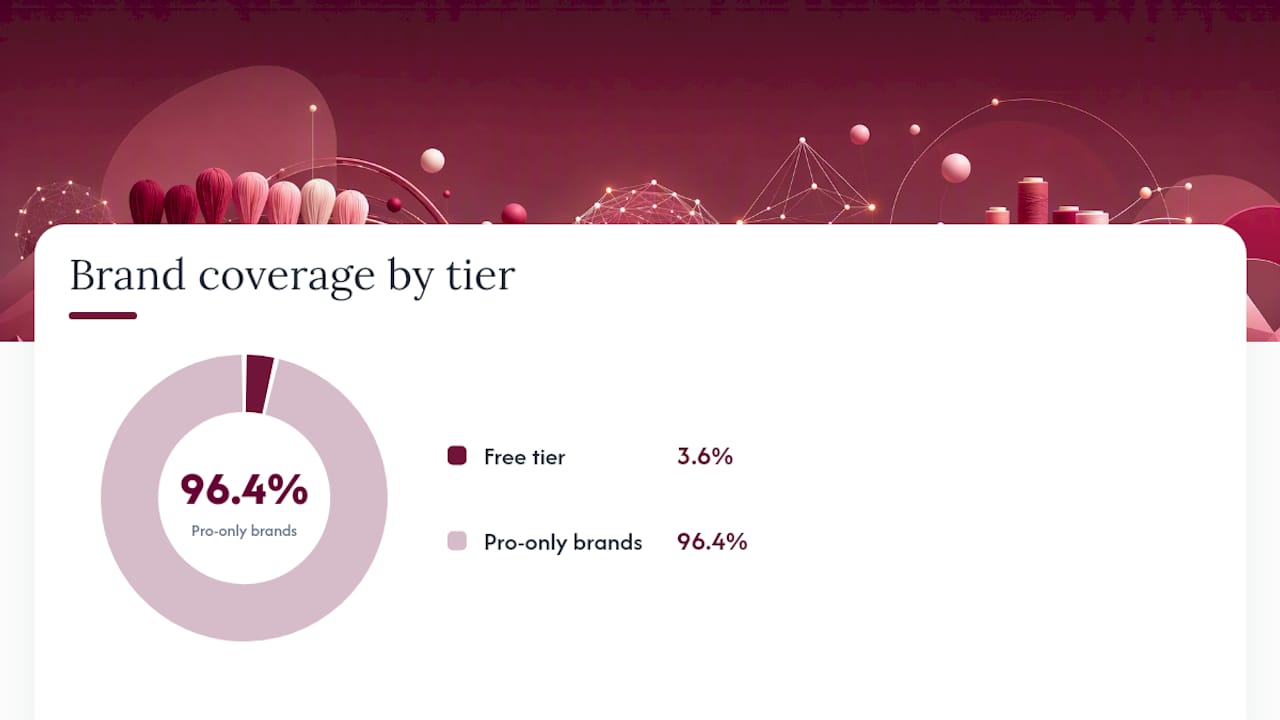
DMC and Anchor codes, standardized correctly in your spreadsheet, will match Flossom's built-in catalog automatically on the free tier. That's the cleanest path, so it's worth spending the extra five minutes fixing inconsistent brand labels before you export rather than after.
For floss from other brands, or where you're not sure which manufacturer a color belongs to, Flossom's thread conversion tool can map codes across supported brands once your data is in the app. Pro unlocks matching across all 55 supported brands, while the free tier covers DMC and Anchor.
- Hand-dyed or unlabeled floss should import as a custom entry with a descriptive name (think "OPD Rustic Barn") rather than forced into a brand match that isn't accurate.
- Attach a photo to custom entries if you have one. It saves guesswork later when you're staring at a half-finished project.
- Spot-check the colors you use most, the ones tied to active projects, right after import to confirm the matches are correct.
Pro Tip: If a color looks slightly off after import, check whether your spreadsheet had the code but not the brand attached. A code like "310" exists in multiple brand catalogs with different names.
How Do You Verify the Import and Fix Errors?
A few minutes of checking after import saves hours of confusion mid-project later.
- Pull up two or three active projects and confirm the required colors show up correctly in your stash.
- Compare quantities against what you remember buying, especially for skeins you've used partially.
- Check that stash locations (bins, drawers, boxes) came through if you tracked them.
Common fixes at this stage:
- Merge duplicate rows that share the same brand and code but landed as separate entries.
- Tag anything questionable "review" instead of deleting it outright, so you can revisit with a clear head.
- Decide case by case whether it's faster to fix an entry inside Flossom or correct the source spreadsheet and re-import that section.
- Generate a sample shopping list and confirm it's only flagging colors you genuinely don't own, not ones sitting unmatched in your stash.
What Should You Do After a Successful Import?
Export a fresh CSV backup from Flossom right after the import finishes. It's a five-second step, and it means you have a clean record of the data as it now lives in the app, not just your original file.
Confirm your account is syncing across devices, then start putting the stash to work:
- Upload pattern PDFs or progress photos into your projects and let the shopping-list generator flag anything you're missing.
- Set low-stock alerts with minimums that match how you actually stitch (a "one skein left" alert means something different for a fast-moving DMC white than a rare specialty color).
- Put a recurring check on the calendar, weekly or right before starting a new project, so duplicate purchases don't creep back in.
Why Moving Off Spreadsheets Actually Changes How You Shop
Spreadsheets are honest about what you own only if you remember to update them, and most of us don't. That gap is where duplicate skein purchases come from, not carelessness, just friction. The bigger shift isn't the import itself. It's that Flossom checks your stash against a pattern automatically, so the habit of forgetting to update a cell stops costing you money.
One thing that speeds up the first import: fix your brand name spelling before you touch the export button, not after. It's a five-minute task that prevents most of the mapping headaches people run into. If you get stuck partway through, the Flossom blog has more detailed walkthroughs, and the support contact inside the app is worth using rather than guessing.
— Simone
Put Your Imported Stash to Work With Flossom's Tools
Getting your spreadsheet into Flossom is the first step. The payoff shows up once you start using the thread conversion tool to match colors across brands or browsing the full tools page for project calculators that turn your newly imported stash into real planning. The free tier already handles DMC and Anchor with unlimited stash and a limited number of active projects, which is enough for testing the workflow before committing further.
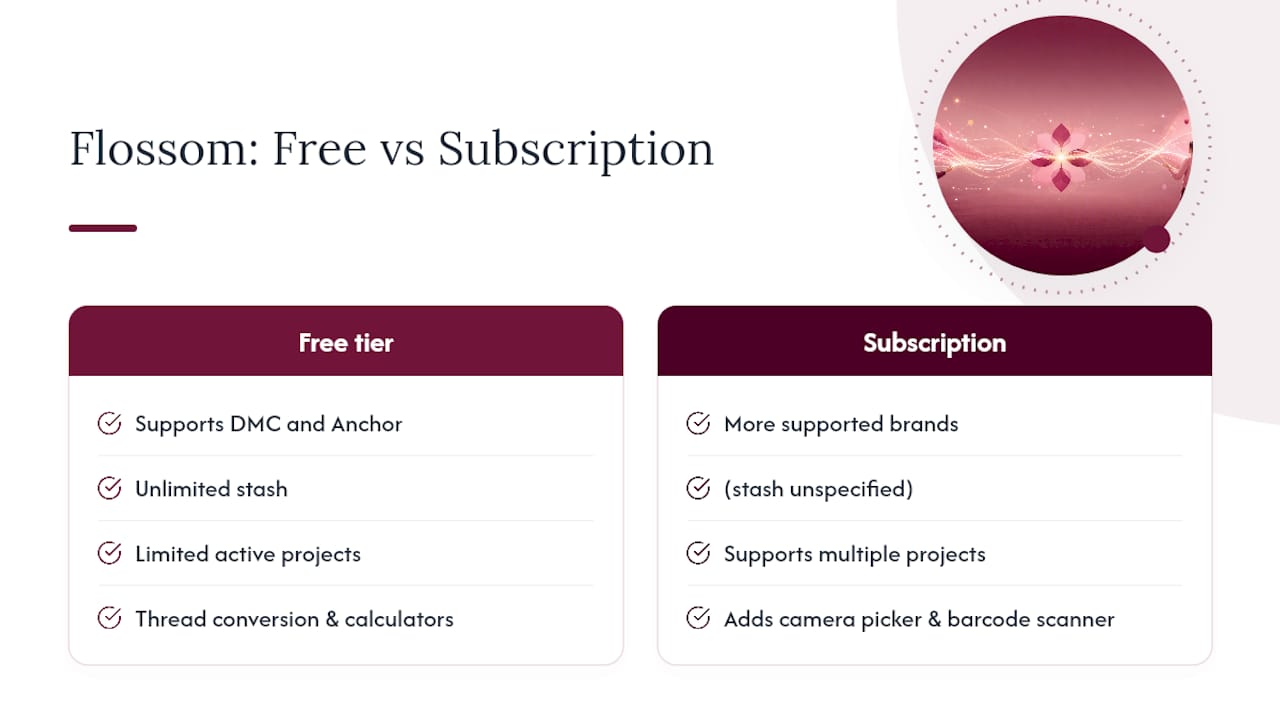
If you're managing multiple projects at once, or working across brands beyond basic ones, a subscription plan opens up more supported brands along with additional tools like a camera color picker and barcode scanner, which can make future stash updates faster than any spreadsheet. Start with a small trial import, confirm your CSV backup is saved, and go from there at Flossom.
Sources
- Importing data (CSV) — Bubble manual
- How to import a file of people & companies in CSV? — Folk Help & Support
Recommended
We make Flossom — the calm app for cross-stitchers and embroiderers who want their stash, projects, fabric and shopping list in one tidy place.