
Recover an editable cross-stitch pattern from a PDF
Lost your WinStitch or MacStitch source file? A compatible PDF can provide a route back to an editable chart: reconstruct it in Flossom, check the stitches, then export OXS.
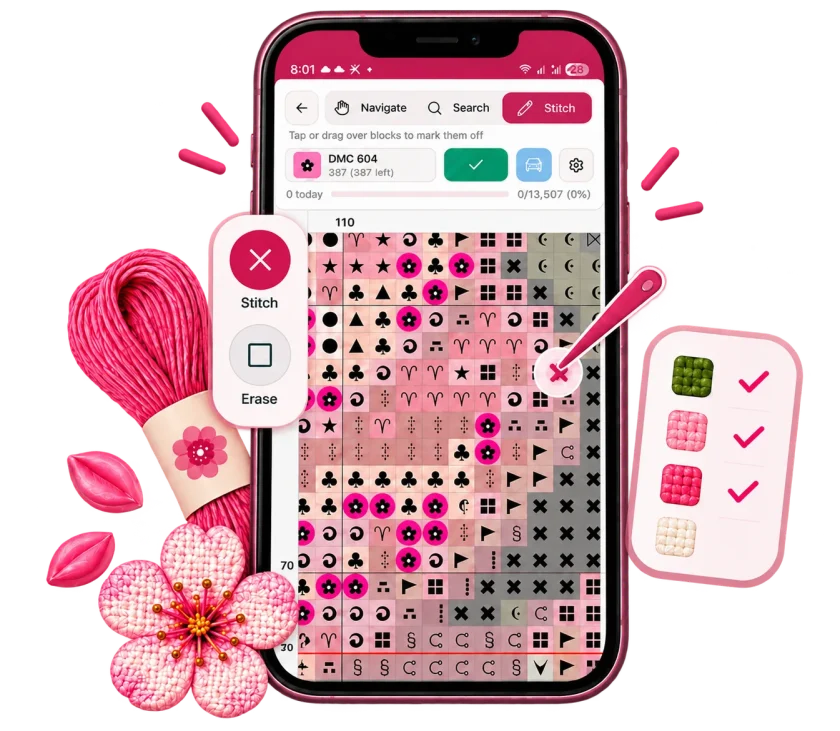
A finished PDF is useful for stitching, but it is not the editable source you originally saved in your design software. If that source file has been lost, a compatible PDF may still contain enough chart information to reconstruct the design without entering every stitch again.
The route is PDF → Flossom reconstruction → OXS → WinStitch or MacStitch. It recovers an editable representation of the chart that Flossom can read; it does not recover the original proprietary file or guarantee a perfect reconstruction of every PDF.
Why export OXS instead of another PDF?
A PDF describes the printed pages. OXS describes a cross-stitch chart: its grid, palette and stitch positions. Opening that file in compatible design software gives you chart data to work with, rather than a page image to trace.
Ursa Software created the open format to help designs survive changes of software and the disappearance of older programs. Its official OXS specification explains that preservation goal. The WinStitch and MacStitch documentation describes opening and exporting OXS in versions from 2021 onwards.
When this recovery route is useful
- You have lost a WinStitch or MacStitch source file but still have the exported pattern PDF.
- You retain a PDF from old cross-stitch software that you can no longer use.
- You need an open-format copy of your own chart for another compatible design program.
Try an existing source file or backup first if you have one: that is more likely to preserve everything the original program stored. Use this recovery route for your own designs, or designs you have permission to reconstruct and edit. Owning a PDF does not automatically give permission to alter or redistribute its design.
How to recover a chart from PDF to OXS
- Find the original PDF export. Choose a file from the designer or charting software, ideally an app-formatted version if one exists. Scans, photographs, screenshots and flattened or image-only PDFs are not supported by the ordinary Flossom Reader.
- Open it in Flossom. Upload the PDF in your project's Pattern section and choose Open in reader. The Chart Reader reconstructs the chart and its key when it can establish the printed grid and symbols.
- Inspect before exporting. Compare the grid, sheet joins, symbols, thread codes, blends and printed strand instructions with the PDF. Check counts by stitch type and make sure backstitch, knots and beads appear where required. A readable chart or matching full-cross total alone does not prove every detail is correct.
- Correct proven import mistakes. Edit mode can change an individual full-cross cell's thread or remove a stray full cross. Closest-colour suggestions help you find a candidate, but confirm it against the printed key. Preserve deliberate confetti and blank spaces. This is correction of the imported chart, not redesign of the pattern; Edit mode does not repair every specialty layer.
- Download the OXS. Open Chart settings and choose Download OXS file. Keep the original PDF alongside your exported file so you can check it later.
- Open and verify in WinStitch or MacStitch. Use a version that supports OXS, open the downloaded file, and compare it with the PDF again. Check fractional corners, blends, strand counts, line endpoints, knots and beads before saving a new native source file. Other OXS-compatible programs may interpret individual features differently.
For the Reader's exact controls, see Exporting your chart as an OXS file and Correcting individual stitches with Edit mode.
What the exported file carries — and what it does not
Flossom's OXS export carries the reconstructed stitch grid, thread key, colours and symbols, plus recovered backstitch, fractional stitches and beads. An export can only carry what is present in the reader chart: it cannot recreate missing PDF information.
OXS is an exchange format, not a copy of your original source file. Do not expect it to restore the old program's page layout, fonts, original editing history or every program-specific stitch representation. Some specialty types are represented using OXS equivalents; check their appearance and instructions in the receiving program.
Flossom stitching progress, parked threads and logbook are not included in its OXS download. Use Export reader backup in Chart settings if you also need to retain your Flossom work.
Common recovery questions
Can I reopen a PDF directly in WinStitch?
This workflow is not a direct PDF-open command in WinStitch. Flossom reads a compatible PDF first and exports the reconstructed chart as OXS; WinStitch then opens the OXS file.
Will this recover every old cross-stitch pattern?
No. The PDF must retain readable chart information, and layouts and export settings vary. If Flossom cannot read it, try another original export or ask the designer for an app-compatible file. A scan or printed copy saved back to PDF is not a substitute for the original chart data.
Is the recovered file ready to publish or sell?
Not automatically. Check the reconstruction and the destination program's interpretation against the original, resolve any warnings, and verify that you have the necessary design rights before distributing it.
Do I need Flossom Pro?
Ongoing Chart Reader access is included with Flossom Pro. Free accounts have a one-time 14-day Reader trial on one of their own projects; upload and inspect before the trial starts, with the 14 days beginning when the first stitch is marked complete. No payment details are required.
Check Reader compatibility and access before starting your recovery.
We make Flossom — the calm app for cross-stitchers and embroiderers who want their stash, projects, fabric and shopping list in one tidy place.